
Behavior Tree Insight Documentation
Installation, analysis, snapshots, decision-structure diff workflow, generated outputs, and review boundaries for Behavior Tree Insight.
Behavior Tree Insight
Unreal Editor analysis plugin for Behavior Tree structure review, snapshot history, decision-structure diff, and AI-readable gameplay reasoning material.
Unreal Engine 5.4 - 5.7
Designed for Windows editor workflows and Win64 plugin distribution unless otherwise stated on the product listing.
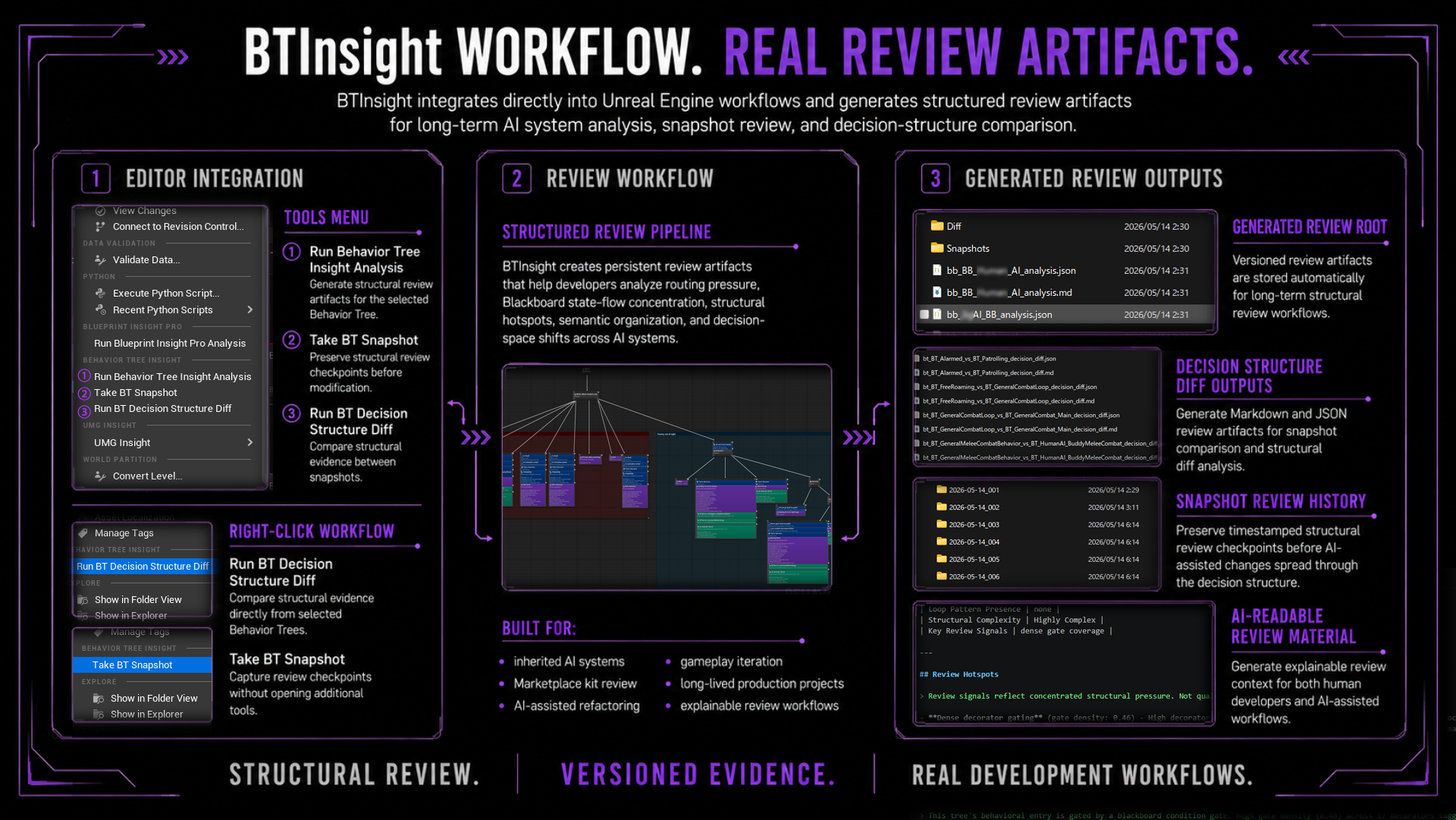
Decision-structure review before gameplay uncertainty.
Behavior Tree Insight helps developers inspect Behavior Tree structure, Blackboard state-flow pressure, EQS participation, decorator gating, service density, and review hotspots without claiming runtime truth.
Analyze, snapshot, and compare.
Use full analysis for project-level context, snapshots for review checkpoints, and Decision Structure Diff for comparing structural evidence between selected Behavior Trees.
Recommended First Steps
- Run full analysis when you want project-level BT, BB, and EQS review artifacts.
- Take a snapshot before modifying an important Behavior Tree.
- Run Decision Structure Diff when you want to compare two selected Behavior Trees.
- Share Markdown or JSON reports with an AI assistant when you need structured review context.
Install the Plugin
- Close Unreal Editor.
- Copy the plugin folder into your project's
Pluginsfolder. - Confirm the plugin folder is directly under
<YourProject>/Plugins/. - Reopen the project in Unreal Editor.
- If Unreal asks to rebuild modules, allow the rebuild.
Enable the Plugin
- Open
Edit > Plugins. - Search for
Behavior Tree Insight. - Enable the plugin if it is not already enabled.
- Restart the editor if Unreal asks you to do so.
Run Full BT Analysis
- Open your Unreal Engine project.
- Go to Tools > Run Behavior Tree Insight Analysis.
- Wait for the progress notification to complete.
- Open the generated reports under <YourProject>/Saved/BehaviorTreeInsight/.
Full analysis creates project-level Behavior Tree, Blackboard, and EQS review reports.
Take a BT Snapshot
- Select exactly one Behavior Tree asset in the Content Browser.
- Use Tools > Behavior Tree Insight > Take BT Snapshot, or right-click the selected Behavior Tree asset and choose Take BT Snapshot.
- Open the generated snapshot folder under <YourProject>/Saved/BehaviorTreeInsight/Snapshots/[BT_Name]/[YYYY-MM-DD_NNN]/.
Snapshots are static review checkpoints. They do not record runtime behavior.
Run BT Decision Structure Diff
- Select exactly two Behavior Tree assets in the Content Browser.
- Use Tools > Behavior Tree Insight > Run BT Decision Structure Diff, or right-click the selected Behavior Tree assets and choose Run BT Decision Structure Diff.
- Open the generated diff files under <YourProject>/Saved/BehaviorTreeInsight/Diff/.
Decision Structure Diff compares static structural evidence between selected Behavior Trees. It does not judge which version is better.
Generated reports are intended to be inspected by developers and may also be shared with AI assistants for technical discussion.
Report Files
Full Analysis Output
<YourProject>/Saved/BehaviorTreeInsight/
bt_index.mdbt_index.jsonbehavior_profiles.mdbt_[Name]_structure.mdbt_[Name]_semantic.jsonbb_[Name]_analysis.mdbb_[Name]_analysis.jsoneqs_index.mdeqs_index.json
Snapshot Output
<YourProject>/Saved/BehaviorTreeInsight/Snapshots/[BT_Name]/[YYYY-MM-DD_NNN]/
bt_[Name]_structure.mdbt_[Name]_semantic.jsonbb_[Name]_analysis.mdsnapshot_meta.json
Decision Structure Diff Output
<YourProject>/Saved/BehaviorTreeInsight/Diff/
bt_[A]_vs_[B]_decision_diff.mdbt_[A]_vs_[B]_decision_diff.json
What It Helps Review
- Behavior Tree node composition
- Task / Service / Decorator relationships
- Decision evidence orientation
- Decorator gate density
- Service reevaluation pressure
- Loop pattern evidence
- Blackboard state-flow concentration
- EQS task participation
- Snapshot review history
- Decision-structure diff output
- AI-readable Markdown and JSON review material
Review Boundaries
- Behavior Tree Insight performs static editor-side analysis.
- It does not simulate live AI execution, Blackboard values, perception state, or exact runtime branch selection.
- It does not infer AI personality, author intent, gameplay quality, or runtime truth.
- Snapshot and diff outputs are review evidence, not quality grades or automatic behavior approval.
- It does not modify Behavior Trees, Blackboards, EQS assets, gameplay logic, runtime behavior, assets, or project settings.
- Reports are intended to support human review, documentation, onboarding, regression checks, and AI-assisted technical discussion.
Static reports should be treated as evidence-based review material. Runtime behavior, branch conditions, dynamic data, and project-specific design intent may require manual verification inside Unreal Editor.
Do NOT Give AI Only The Full Project Export
When using Insight Ecosystem outputs with AI-assisted workflows, we strongly recommend providing both the full project export and a focused Runtime Package for the specific system currently being modified.
providing BOTH:
- the full project export
- a focused Runtime Package
This is extremely important for long Unreal Engine implementation sessions.
Why?
During large Blueprint-driven workflows, AI may gradually drift from:
system-level runtime reasoningtoward:
localized patch reasoningespecially during manual Blueprint wiring, runtime suppression work, BT/EQS modifications, montage-related implementation, and dispatcher-heavy systems.
The problem is often not lack of information. The problem is:
loss of topology focusRecommended Workflow
1. Full Insight Export
This provides overall project structure, global topology, and cross-system visibility.
2. Focused Runtime Package
This stabilizes runtime ownership awareness, convergence tracking, orchestration understanding, and cleanup path awareness for the system currently being modified.
Example
For a melee combat modification, a Combat Runtime Package might include:
- related BTTasks
- related BTServices
- related Blackboard assets
- combat orchestration Blueprints
- related AnimBP sections
- related dispatcher / notify data
- related hidden_dependencies excerpts
- related comment_clusters excerpts
while excluding unrelated systems such as UI, unrelated locomotion, unrelated player systems, and unrelated vehicle systems.
Important
This is not primarily about reducing file size. It is about:
stabilizing the AI's runtime attention topologyIn practice, this can significantly reduce local patch drift, screenshot anchoring, orchestration confusion, cleanup-path mistakes, and runtime ownership loss during long AI-assisted Unreal Engine sessions.
For more detailed discussion about AI reasoning drift, synchronization rules, structure-first workflows, and runtime orchestration safety, please see:
Return to the product page or Insight Ecosystem.
Use this direct documentation page for Fab documentation links, product review, and AI-assisted workflow reference.